

Quick Installation
Install with Cursor
One-click installation directly in Cursor
Authorization: Bearer YOUR_BROWSERBASE_API_KEY; otherwise, use the legacy query-parameter fallback:
Endpoint
Hosted Streamable HTTP endpoint (served on Browserbase infrastructure):Prerequisites
1
Get your Browserbase credentials
Get your Browserbase API key from the Browserbase Dashboard.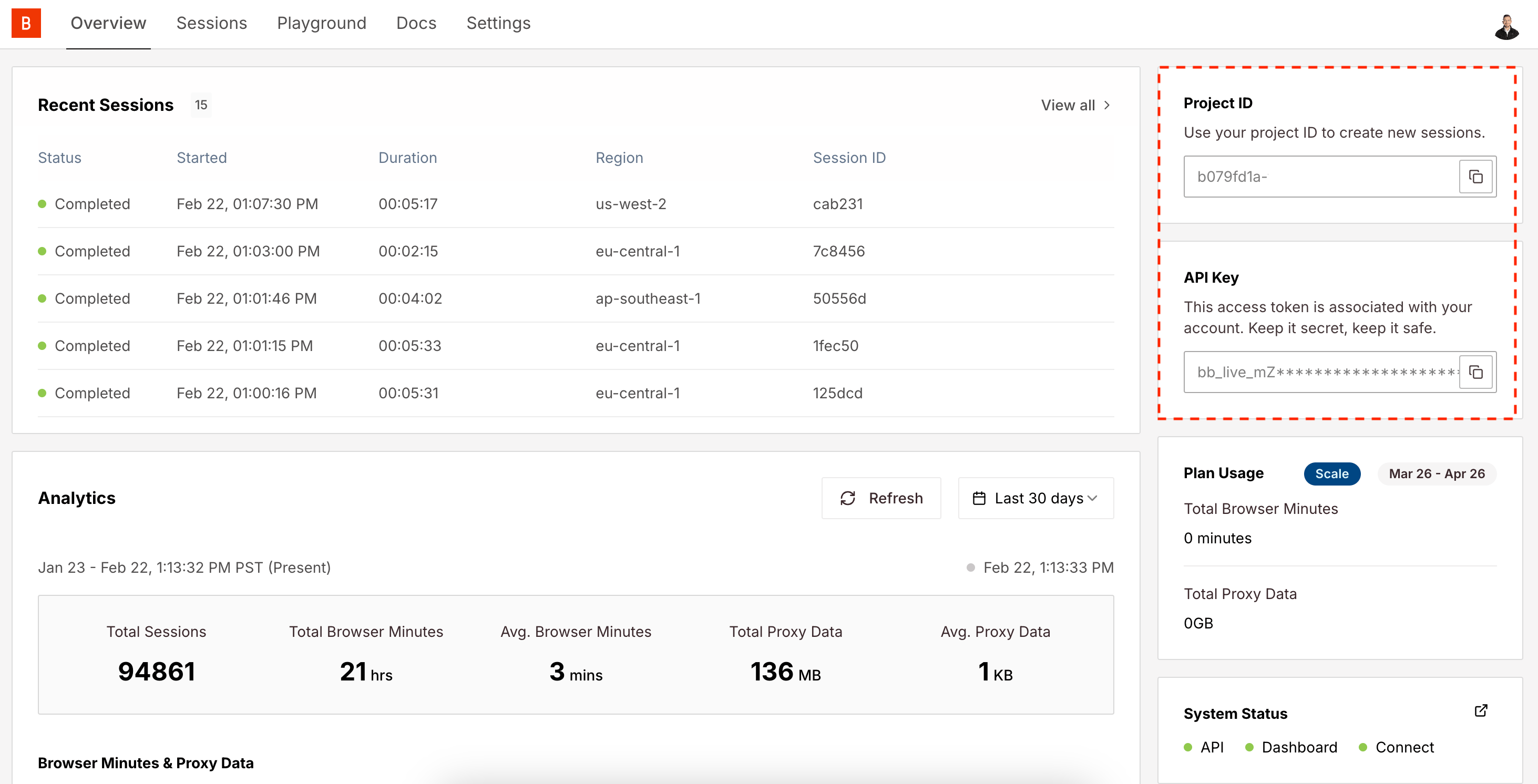
Authentication and Query Parameters (Hosted Streamable HTTP)
Required for tool calls
Authorization
Pass your Browserbase API key as an HTTP authorization header:
Authorization: Bearer YOUR_BROWSERBASE_API_KEY.The hosted server also accepts
x-bb-api-key: YOUR_BROWSERBASE_API_KEY.
The browserbaseApiKey query parameter remains supported as a deprecated
compatibility fallback for clients that cannot set request headers.Optional
Available Tools
act
act
Perform an action on the web page using natural language
The action to perform (e.g., “click the login button”, “fill form field”)
observe
observe
Observe and find actionable elements on the page.
Specific instruction for observation (e.g., “find the login button”, “locate search form”)
extract
extract
Extract data from the current page.
Optional extraction instruction.
start
start
Create or reuse a Browserbase session and set it as active for the current MCP transport session.
No input parameters required.
Browserbase session ID.
end
end
Close the active Browserbase session for the current MCP transport session.
No input parameters required.
Local Command-Line Flags
Command-line flags are only available when running the server locally (
npx @browserbasehq/mcp with flags or local development setup).Installation Methods
- Hosted (recommended)
- NPM Package (STDIO)
- Local Development
Use your MCP client config:For custom models, include
modelName and modelApiKey:Verify Installation
1
Restart your MCP client
Restart/refresh your MCP client app and verify tools are available.
2
Test the integration
Get started using our MCP Server by asking your MCP client to navigate to any page and see your Browserbase Browser in action on the dashboard.
Further Reading
Model Context Protocol (MCP) Docs
Learn more about the MCP protocol
Browserbase Documentation
Explore Browserbase features and capabilities
Support
Get help from our support team