

What is agent()?
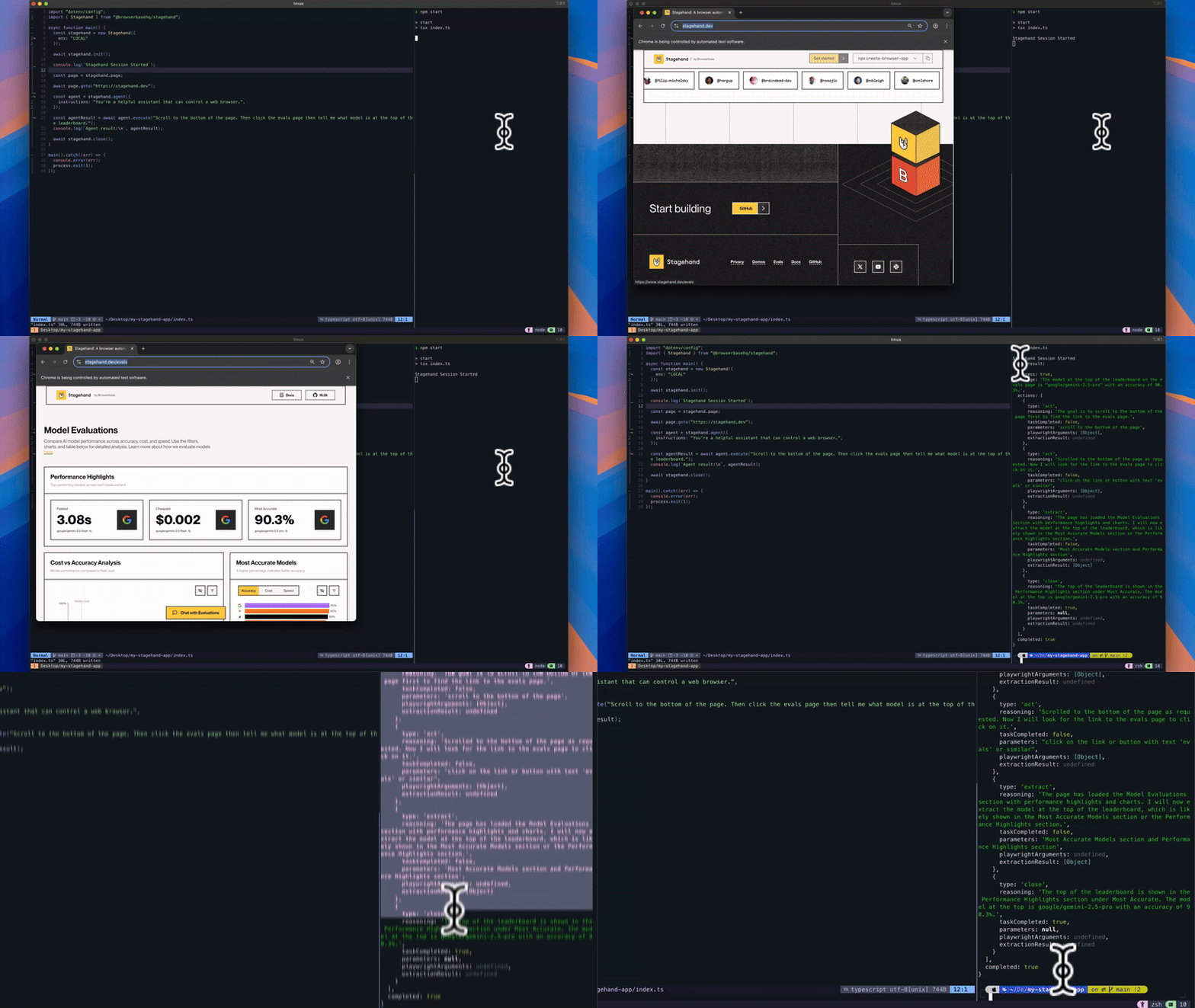
agent turns high level tasks into fully autonomous browser workflows. You can customize the agent by specifying the LLM provider and model, setting custom instructions for behavior, and configuring max steps.
Why use agent()?
Multi-Step Workflows
Execute complex sequences automatically.
Visual Understanding
Sees and understands web interfaces like humans do using computer vision.
Using agent()
There are two ways to create agents in Stagehand:
Computer Use Agents
Use computer use agents with specialized models from OpenAI or Anthropic:View or run the example template here
Use Stagehand Agent with Any LLM
Use the agent without specifying a provider to utilize any model or LLM provider:Non CUA agents are currently only supported in TypeScript
TypeScript
MCP Integrations
Agents can be enhanced with external tools and services through MCP (Model Context Protocol) integrations. This allows your agent to access external APIs and data sources beyond just browser interactions.Available Models
Use specialized computer use models (e.g.,computer-use-preview from OpenAI or claude-sonnet-4-20250514 from Anthropic)
Available Models
Check out the guide on how to use different models with Stagehand.
Agent Execution Configuration
Control the maximum number of steps the agent can take to complete the task using themaxSteps parameter.
maxSteps limit and check task success.
Best Practices
Following these best practices will improve your agent’s success rate, reduce execution time, and minimize unexpected errors during task completion.Start on the Right Page
Navigate to your target page before executing tasks:- Do this
- Don't do this
Be Specific
Provide detailed instructions for better results:- Do this
- Don't do this
Troubleshooting
Agent is stopping before completing the task
Agent is stopping before completing the task
Problem: Agent stops before finishing the requested taskSolutions:
- Check if the agent is hitting the maxSteps limit (default is 20)
- Increase maxSteps for complex tasks:
maxSteps: 30or higher - Break very complex tasks into smaller sequential executions
Agent is failing to click the proper elements
Agent is failing to click the proper elements
Problem: Agent clicks on wrong elements or fails to interact with the correct UI componentsSolutions:
- Ensure proper viewport size: Stagehand uses
1288x711by default (optimal for Computer Use models) - Avoid changing viewport dimensions as other sizes may reduce performance
Next steps
Act
Execute actions efficiently using observe results
Extract
Extract structured data from observed elements